Here you’ll learn how to install LAMP and setup wordpress in a easily way.
Tasksel
Is a package manager that provides a simple interface for users who want to configure their system to perform a specific task. This program is used during the installation process, but users can also use tasksel at any time.
Installing tasksel
First install tasksel:
sudo apt-get install tasksel
Then, open tasksel terminal and select LAMP server option:
sudo tasksel
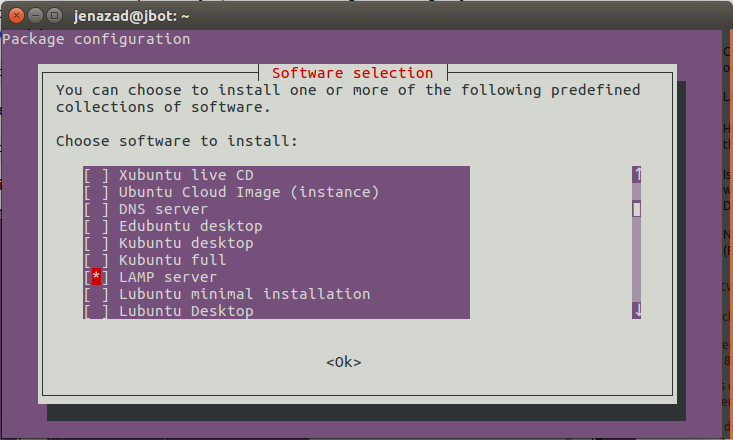
Installing LAMP Server
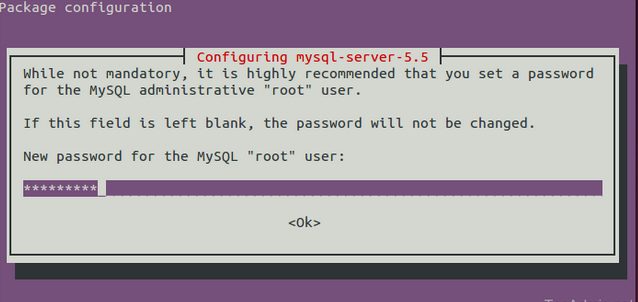
During installation, it ask a password to mysql client:
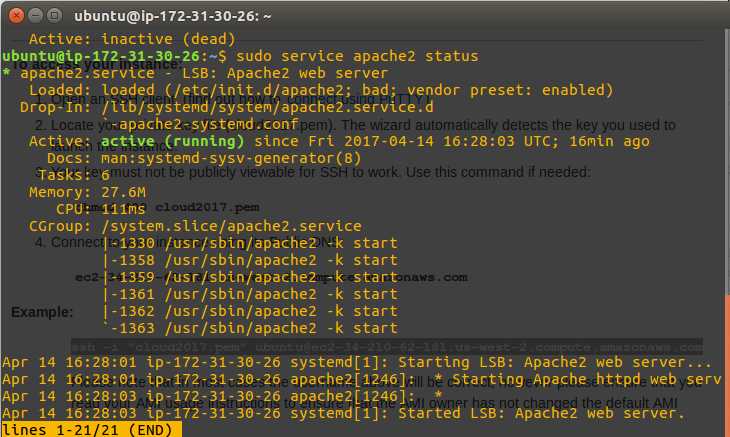
Once the process finished, verify apache status:
sudo service apache2 status
Setting a Database for wordPress
Then, go to mysql client:
mysql -u root -p

Then write:
CREATE DATABASE wordpress;
CREATE USER wordpressuser@localhost IDENTIFIED BY '123abc';
GRANT ALL PRIVILEGES ON wordpress.* TO wordpressuser@localhost;
FLUSH PRIVILEGES;
exit
Download wordPress
Next, we will download the actual WordPress files from the project’s website.
cd ~
wget http://wordpress.org/latest.tar.gz
tar xzvf latest.tar.gz
This will create a directory called wordpress in pur home directory.
Then, we need more packages like:
sudo apt-get update
sudo apt-get install php5-gd libssh2-php
Configure wordPress
It’s time to configure wordPress on your apache server.
cd ~/wordpress
cp wp-config-sample.php wp-config.php
Next, we need to configure wordPress-config file:
nano wp-config.php
And write this:
    define('DB_NAME', 'wordpress');
    define('DB_USER', 'wordpressuser');
    define('DB_PASSWORD', '123abc');
Syncronize documents
Now, we need to copy wordPress configuration into Apache’s document root.
sudo rsync -avP ~/wordpress/ /var/www/html/
Then, we need to change the name of index.php by default (apache’s index) for wordPress index.
cd /var/www/html/
mv index.html _index.html
mv readme.html index.html
Finally, we reload Apache’s server:
sudo service apache2 reload
Verify our wordPress website
In a web browser, navigate to your server’s domain name or public IP address:
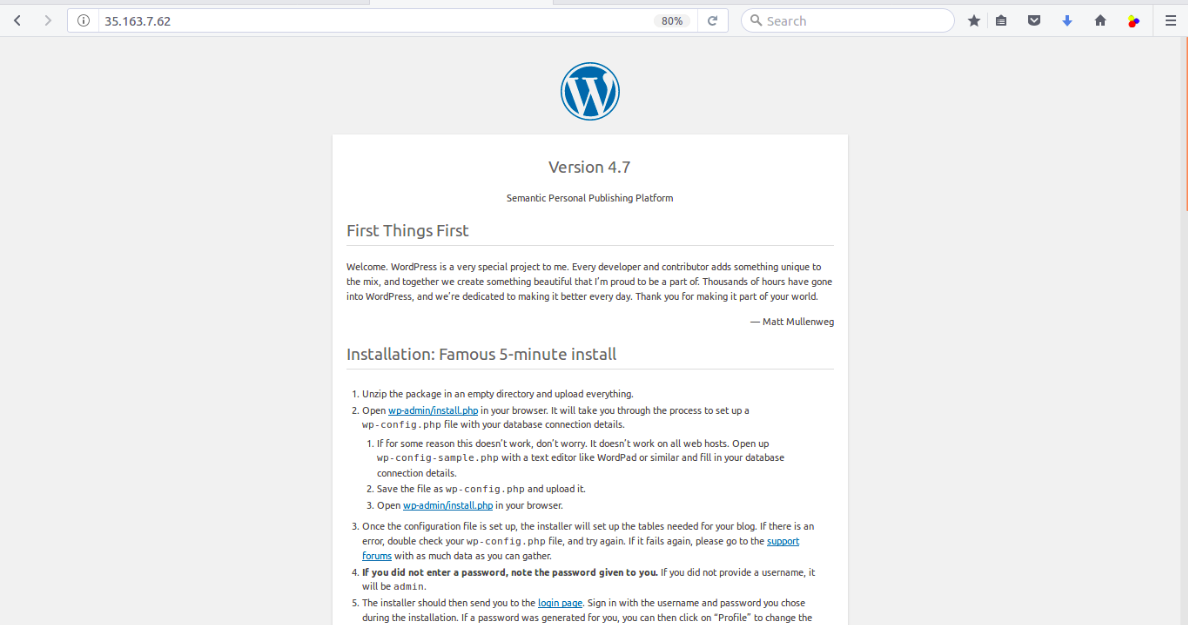
Navigate in the webpage: 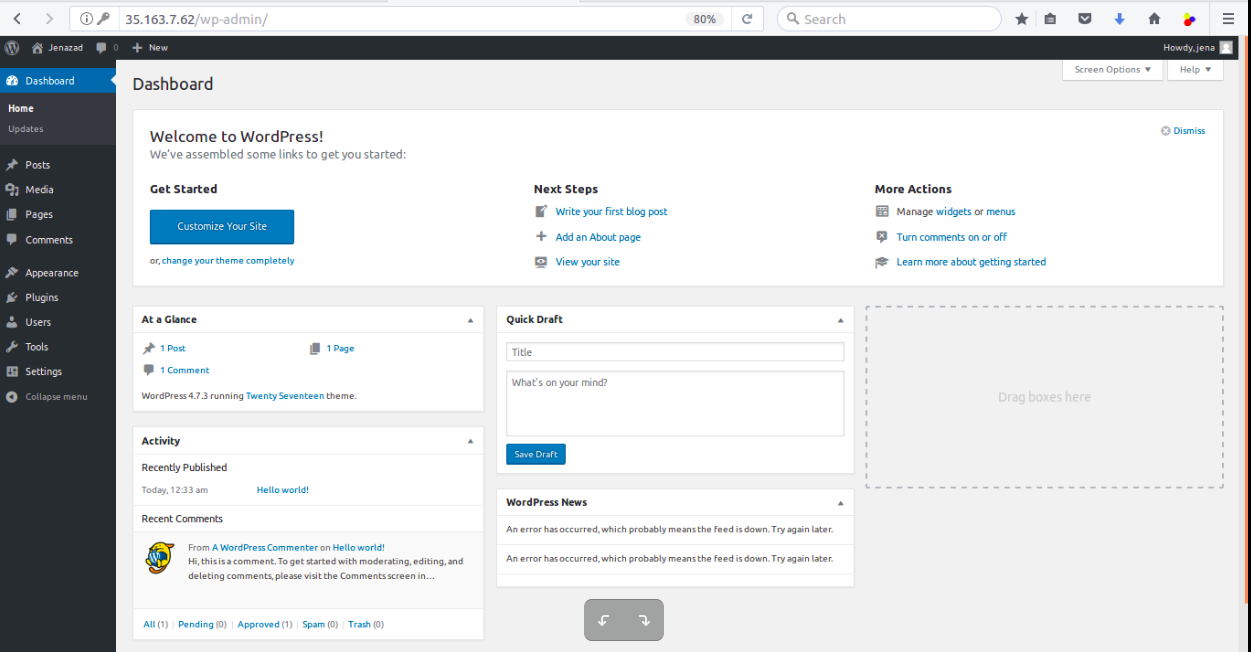
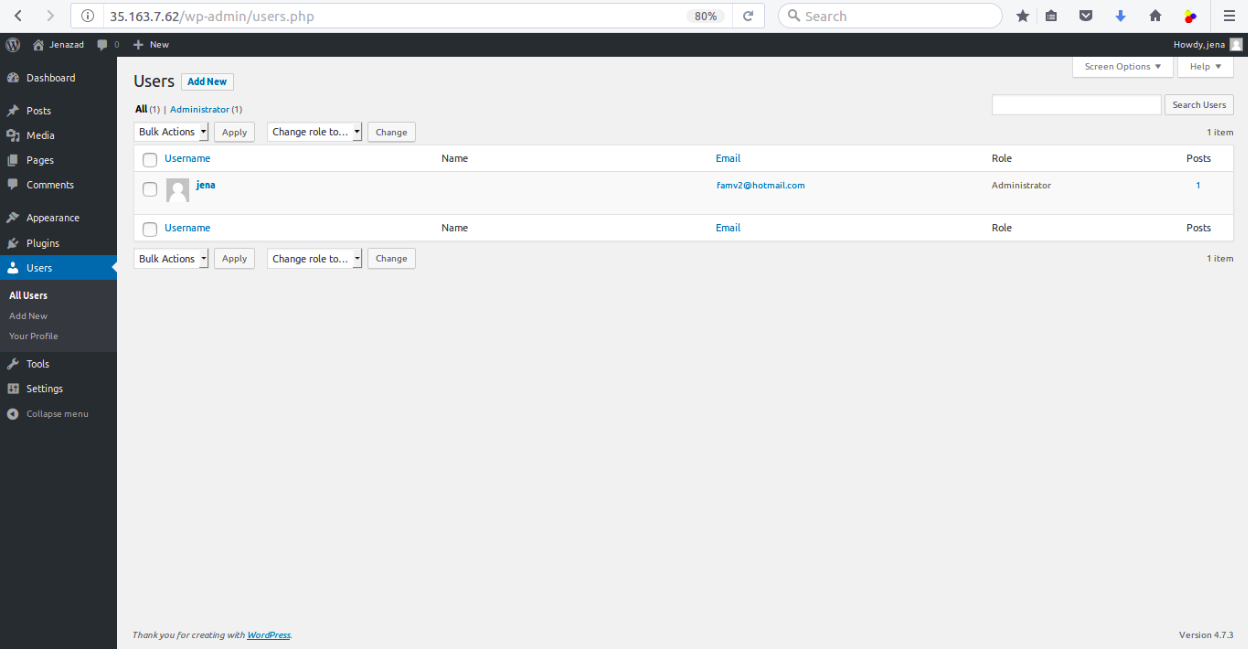
See wordPress users: