
Configuration to have a lightweight system.
Repositories links
Just modify the file /etc/apt/sources.list deleting all sublinks of your country redirecting to the main repositores.
Shutdown System
Command to shutdown Linux Debian based OS using bash:
poweroff
Package Language Configuration
Add in .bashrc file:
export LC_ALL=C
Console Mode
In the file /etc/default/grub modify:
GRUB_TERMINAL=console
#GRUB_CMDLINE_LINUX_DEFAULT="quiet"
#GRUB_CMDLINE_LINUX_DEFAULT="quiet splash"
GRUB_CMDLINE_LINUX="text"
Then, update the grub configuration:
sudo update-grubChanging to text mode:
sudo systemctl set-default multi-user.targetChanging to graphic mode:
sudo systemctl set-default graphical.targetOr in text mode:
startx
mount SD Card
In /etc/modules file, add this line:
tifm_sd
And then in shell terminal, write:
sudo modprobe tifm_sd
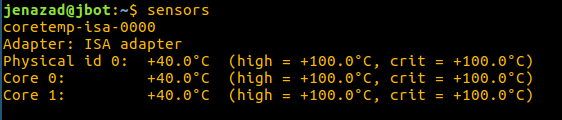
Cores temperature
With this you can see the cores temperature.
sudo apt-get install lm-sensors
sensors
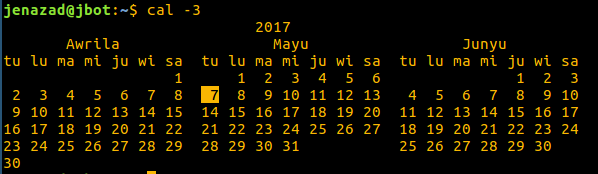
Calendar
On the terminal:
cal -3
Language Keyboard Change
English US, international with dead keys
setxkbmap
Command to adjust keyboard:
ls /usr/share/X11/xkb/symbols
cat /etc/default/keyboard
sudo setxkbmap -layout "us"
sudo setxkbmap -layout "us" -variant "intl"
Shells Manager
byobu
Multiples bash sessions in only one xsession
sudo apt-get install byobu
You can see a Byobu guide pressing here.
Package Manager
gdebi-core
Toolkits to install local packages.
sudo apt-get install gdebi-core
sudo gdebi packageX.deb
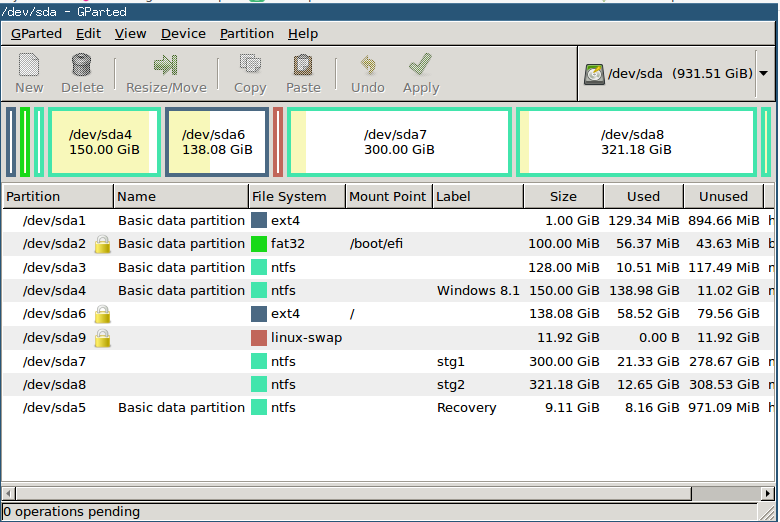
Disk Manager
gparted
Helpful to partition disk.
sudo apt-get install gparted
Process Managment
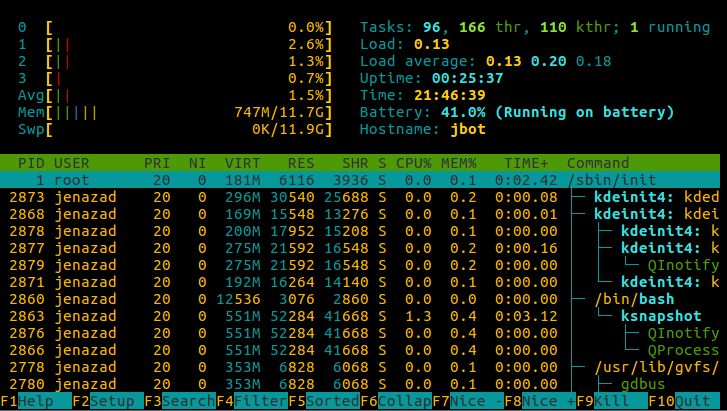
htop
Show all processes in execution on the processors.
sudo apt-get install htop
htop
gnome-system-monitor
Graphical mode to manage processes:
gnome-system-monitor
Network Traffic
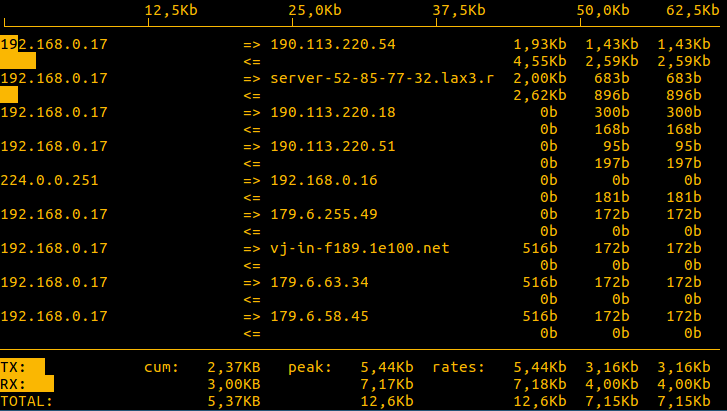
iftop
You can see how much traffic is interchanged between our host and remot host:
sudo apt-get install iftop
sudo iftop -i wlp7s0
nload
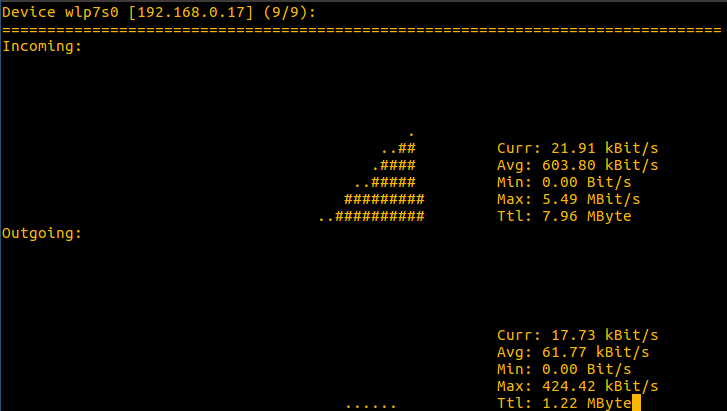
You can see all the traffic in all the interfaces:
sudo apt-get install nload
slurm
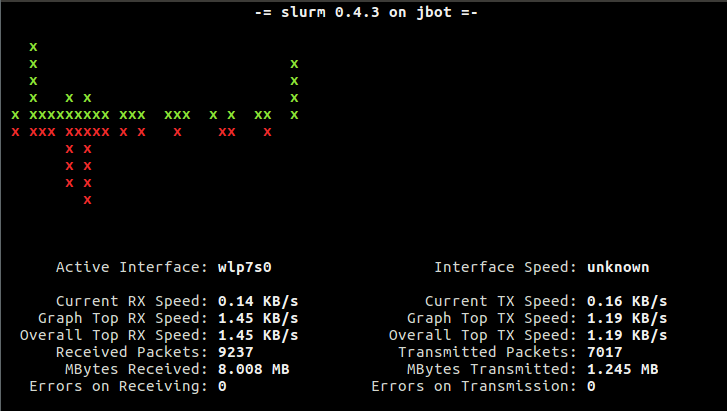
You can see all the trafiic on a specific interface with colors:
sudo apt-get install slurm
slurm -i wlp7s0
tcptrack
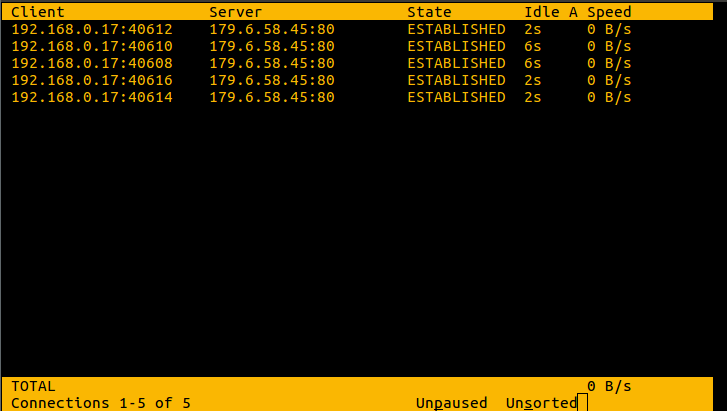
Tells how much bandwidth is being used and also what protocol (service/port) and destination the transmission is taking place to
sudo apt-get install tcptrack
sudo tcptrack -i wlp7s0
Compress File
File Compressor, Files.
7zip Rar
Install:
sudo apt-get install p7zip p7zip-rar rar unrar-free p7zip-fullCompress folder basic to basic.zip
7z a basic.7z basicUncompress the file basic.zip
7z x basic.7z
Default Applications Modify
Exo-Utils
Default application manager.
sudo apt-get install exo-utilsOpen and modify:
exo-preferred-applications
Update-Alternatives
The default application are:
gksudo gedit ~/.local/share/applications/mimeapps.listalso:
gksudo gedit /usr/share/applications/defaults.listor also:
sudo update-alternatives --config x-terminal-emulatorfor the program x-terminal-emulator or for all:
sudo update-alternatives --allor also in GUI:
gnome-control-centeror also creating environment variable in
~/.bashrc:export EDITOR="nano" export BROWSER="firefox"Then, updating:
sudo update-initramfs -u
Images Editor
GIMP
sudo apt-get install gimp
Text Editor
Vim
Similar to nano but with more functions:
sudo apt-get install vim
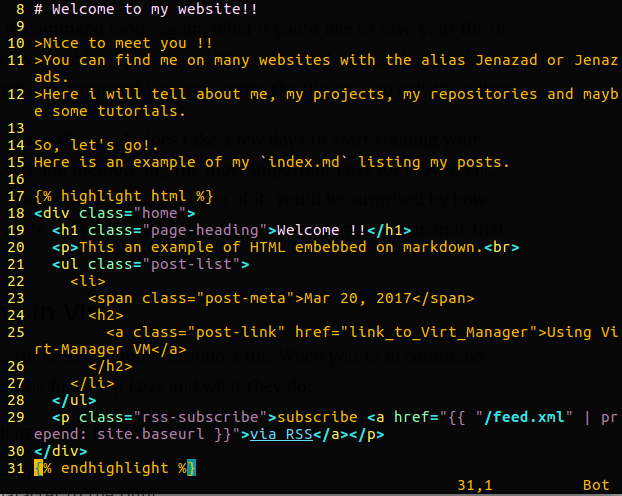
You can see a Vim guide pressing here.
File System Manager
pcmanfm
sudo add-apt-repository ppa:lubuntu-dev/lubuntu-daily
sudo apt-get update
sudo apt-get install pcmanfm gvfs
ranger
Console file system
sudo apt-get update
sudo apt-get install ranger caca-utils highlight atool w3m poppler-utils mediainfo
Copy the configuration:
ranger --copy-config=all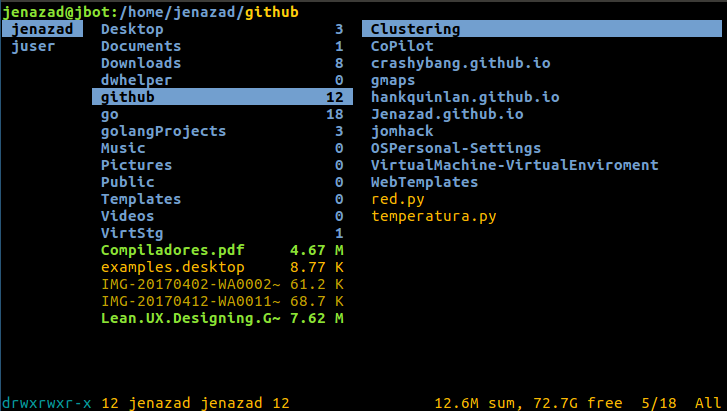
Audioplayer
cmus
Music mp3 player:
sudo apt-get install cmusCommands:
  :add /dir/path/ to add music from directory
  c to pause or play.
  v to stop.
  x to restart.
  + or - to increase or decrease volumen.
  TAB to change tabs.
  spacebar to open an element's content.
  z previous song.
  b next song.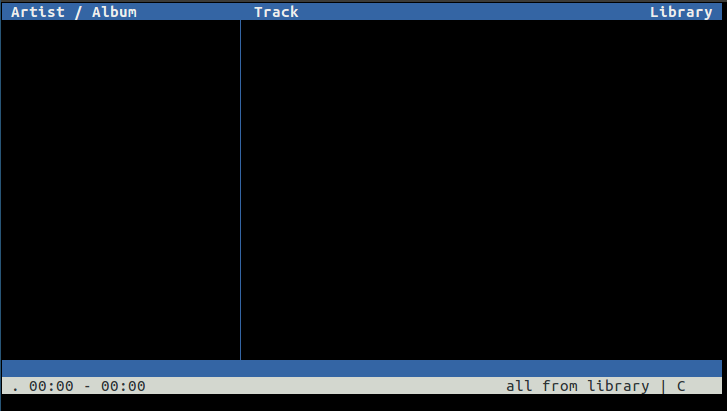
Videoplayer
mplayer
sudo apt-get install mplayer
mplayer [Filename]
VLC player
Music, video, audio player.
sudo apt-get install vlc vlc-plugin-pulseConsole mode:
vlc --intf ncurses [filename]
cvlc [filename]
Graphic mode:
vlc [filename]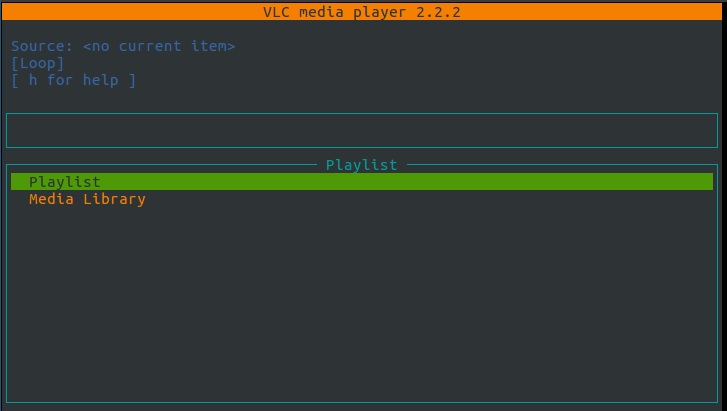
Pictures viewer
gpicview
Install:
sudo apt-get install gpicviewOpen an image or open gpicviewer and choose the file to open.
gpicview /path/to/file/image.jpg
PDF viewer
Zathura
Install:
sudo apt-get install zathura
zathura meow.pdf
To open a file, just write
o” + tab and look for the path & file.~/Desktop/direxample/Document.pdf
Web Browsers
Tor
Web Browser that use firefox.
sudo add-apt-repository ppa:webupd8team/tor-browser
sudo apt-get update
sudo apt-get install tor-browser
Links
Web Browser that doesnt support imagen, videos, just text only.
sudo apt-get install links links2- Switch Meaning
-gWeb browser execute graphic environment.-modeSet graphic mode.-driverSpecifies the graphic system.
Specification of the colors with 1024x768 and 16 million colours
links -g -mode 1024x768x16M
links2 -g www.google.com.pe
links www.google.com.pe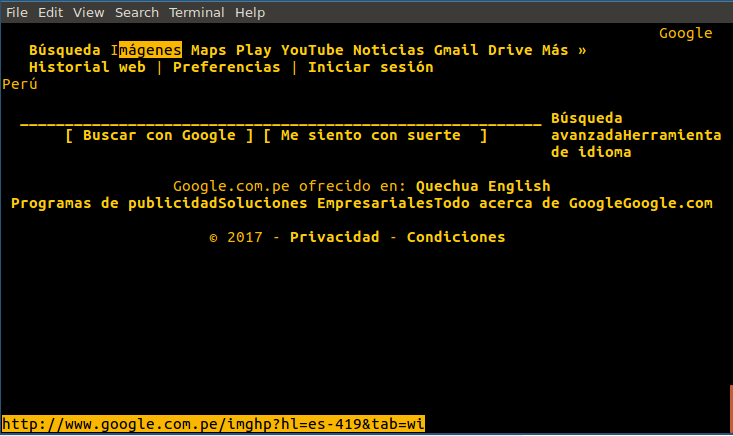
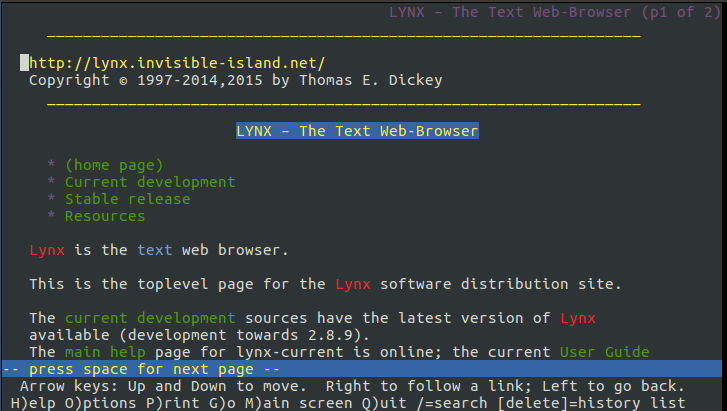
Lynx
sudo apt-get install lynx
Flash
Flash player, helful to see videos, images, etc
sudo add-apt-repository ppa:nilarimogard/webupd8
sudo apt-get update
sudo apt-get install browser-plugin-freshplayer-pepperflash
Screen Shot
shutter
Console screenshoter
sudo add-apt-repository ppa:shutter/ppa
sudo apt-get update
sudo apt-get install shutter
Full screen with a specific filename and is saved in our actual directory.
shutter -f -o shot.pngFull screen with a non-specific filename (by default is the timedate) and is saved on Pictures directory.
shutter -fArea screen, specifying file:
shutter -s -o meow.pngArea screen
shutter -s
imagemagick
sudo apt-get install imagemagick
import -window root alScreenImage.png
import partOfScreen.png
Screen brightness
xblacklight
Install:
sudo apt-get install xbacklightIncreases brightness by 10%
xbacklight -inc 10Decreases brightness by 10%
xbacklight -dec 10Set brightness in 80%
xbacklight -set 80Or more easily:
Decreases by 10:
xbacklight -10.Increase by 10:
xbacklight +10
Sound Controller
alsamixer
Console mode - On/Off:
amixer -D pulse sset Master toggleModify the audio called ‘Master’:
amixer -D pulse sset Master 5%-Graphic mode:
alsamixerPress F6 and choose PCH instead HDMI (projector sound audio) and modify
Master.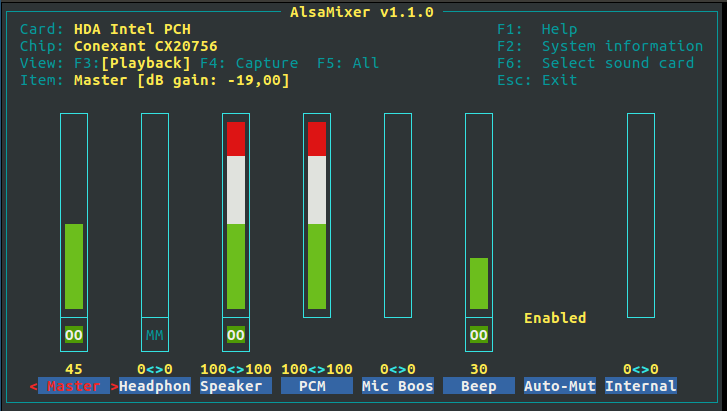
Screen Background
nitrogen
sudo apt-get install nitrogen
nitrogen --set-centered /path/.i3/DragonInferno.jpg
nitrogen --set-scaled /path/.i3/DragonInferno.jpg
Network Manager
nmap
Helful to detect all devices connected on your network.
sudo apt-get install nmap
sudo nmap -sP 192.168.20.0/24
Graphic mode:
sudo apt-get install netdiscoverEthernet:
sudo netdiscover -r 192.168.1.0/24Wireless:
sudo netdiscover -r 192.168.1.0/24 -i wlan0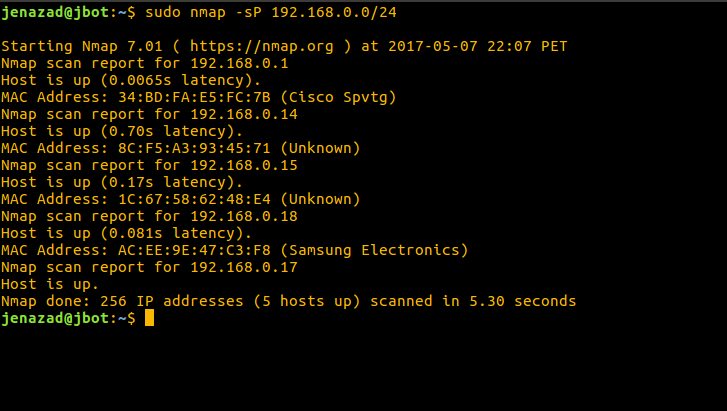
nmcli
nm-connection-editor
Graphic mode:
nm-appletConnecting to a wireless net:
sudo nmcli dev wifi connect "netname" password "passwd"Disconnect:
sudo nmcli dev disconnect iface eth0Show enabled devices:
sudo nmcli devTurn off/on wifi:
sudo nmcli r wifi off/on
Network Configiguration
wlan0/eth0 configuration
Types of security: Open/WEP/WPA/WPA2
Enabled/disabled the wireless/ethernet card:
sudo ifconfig wlan0 up/down
sudo ifconfig eth0 up/down
Look for a network to connect:
iwlist wlan0 scanConnect to a network:
Security Open:
sudo iwconfig essid "netname"Security WEP:
sudo iwconfig essid "netname" key ["HExadecimal_Clave_red" o "s:decimal_key"]
Renews the dynamically-assigned IP address of a interface ethernet/wireless device.
sudo dhclient wlan0
sudo dhclient eth0
Interfaces configuration
Show all network configurations:
sudo nano /etc/network/interfacesDynamic (through dhclient)
auto wlan0
iface wlan0 inet dhcp
wireless-essid netname
wireless-key passwd
wireless-mode managed

auto eth0
iface eth0 inet dhcp
Static
auto wlan0
iface wlan0 inet static
wireless-essid netname
wireless-key passwd
wireless-mode managed
address 192.168.100.150
netmask 255.255.255.0
network 192.168.100.0
gateway 192.168.100.1
broadcast 192.168.100.255
dns-nameservers 8.8.8.8 8.8.4.4

auto eth0
iface eth0 inet static
address 192.168.100.15
netmask 255.255.255.0
network 192.168.100.0
gateway 192.168.100.1
broadcast 192.168.100.255
dns-nameservers 8.8.8.8 8.8.4.4
Then, restart the service:
sudo /etc/init.d/networking restart
DNS configuration
List DNS servers for internet domain name resolution.
cat /etc/resolv.confResult:
nameserver 8.8.8.8
nameserver 8.8.4.4
Hosts Configuration
Show Ip and hostsname asociated, we can add another hosts.
cat /etc/hostsShow our hostname, we can change our hostname.
cat /etc/hostnameShow network interfaces:
ls /sys/class/net- eth0: ethernet
- lo: local loop
- wlan0: wireless
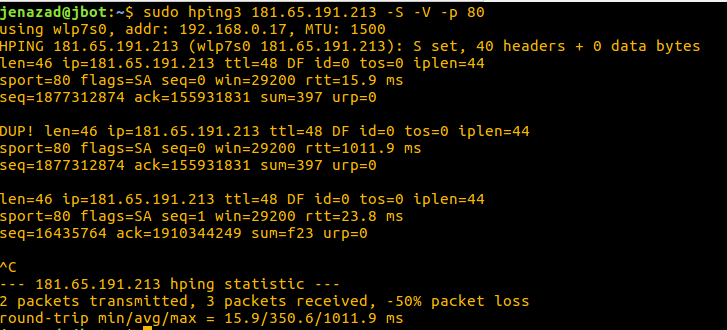
Ping hosts and ports
With hping3 we can ping a server through a specific port:
sudo apt-get install hping3
Booteable USB
Terminal:
sudo dd if=[path_to_iso] of=[path_to_usb]
sudo dd if=~/Downloads/debian-7.4.0-amd64-CD-1.iso of=/dev/sdb
Graphical mode with
Disk Creator.