
Here you’ll learn how to build your own cluster that uses CUDA library to execute programs in parallel mode.
Cluster
Using our cluster created GPUJcluster.
We need to install CUDA (Compute Unified Device Architecture).
CUDA
Is a platform of parallel computing that includes a compiler and a set of toolkits created by nVidia.
CUDA allows to developers use a variation of C language to code in GPU nVidia.
How to install NVIDIA Driver
We will install CUDA version.
First of all, we check our GPU description (here shows you if you have NVIDIA or ATI/AMD processor):
lspci | grep ' VGA ' | cut -d" " -f 1 | xargs -i lspci -v -s {}The output should show the GPU name and the driver, we have NVIDIA GPU
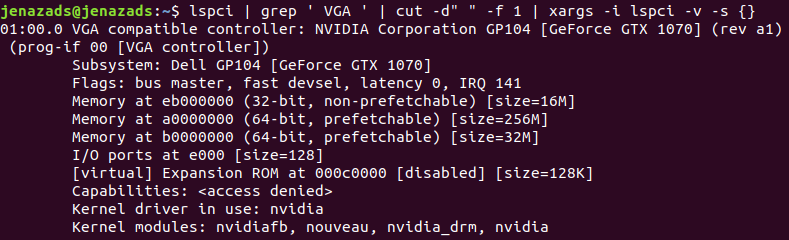
Next, Add and Update your GPU driver repository:
sudo add-apt-repository ppa:graphics-drivers/ppa
sudo apt-get update
Now, we need to check which driver should we install, just run to see recommendations:
ubuntu-drivers devices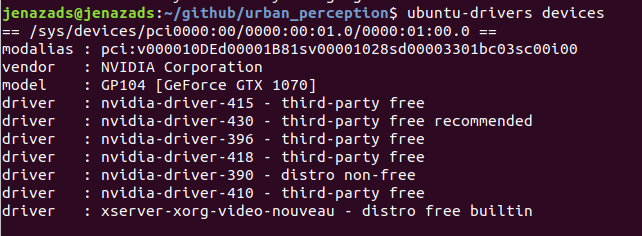
Then. you can install the driver recommended by the OS:
sudo ubuntu-drivers installOr install the driver (in our case, they recommend to install nvidia-430 for a GeForce GTX 1070):
sudo apt-get install nvidia-driver-430Or click here to see NVIDIA recommendations and download the
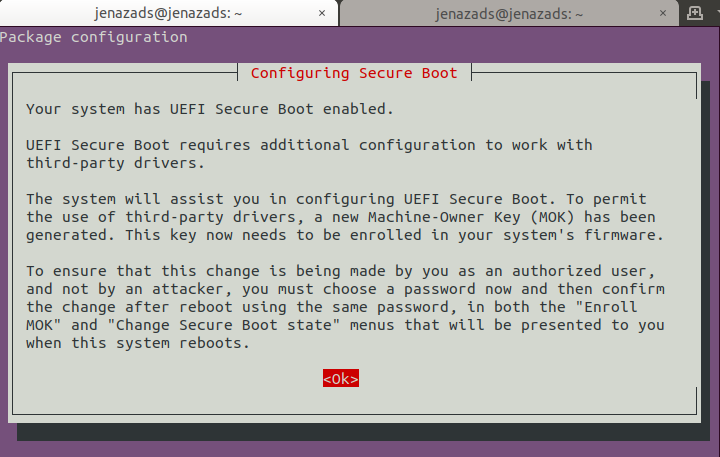
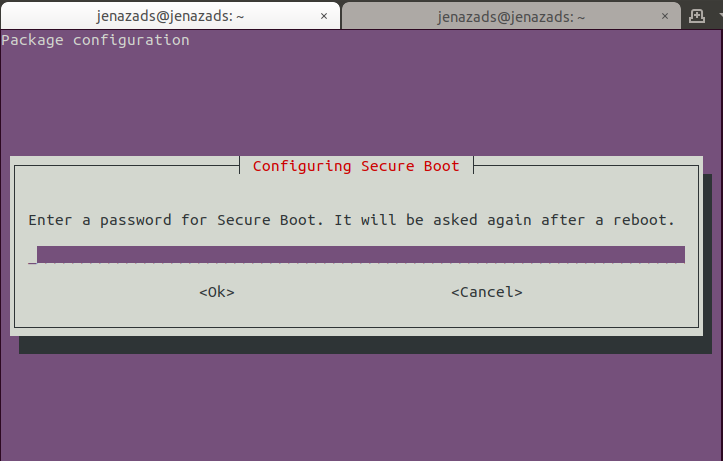
.runfile to install it.While you are installing NVIDIA, it ask for a password (just simple security) and if when you are rebooting appears a blue screen asking for MOK password (see the section below).
Dealing with MOK (only for UEFI Secure Boot enabled devices)
If you were asked to setup a secure boot password, you’ll see a blue screen that says something about “MOK management”. It’s a complicated topic and I’ll try to explain it in simpler terms.
MOK (Machine Owner Key) is needed due to the secure boot feature that requires all kernel modules to be signed. Ubuntu does that for all the kernel modules that it ships in the ISO. Because you installed a new module (the additional driver) or made a change in the kernel modules, your secure system may treat it as an unwarranted/foreign change in your system and may refuse to boot.
If you select “Continue boot”, chances are that your system will boot like normal and you won’t have to do anything at all. But it’s possible that not all features of the new driver work correctly.
This is why, you should choose Enroll MOK.
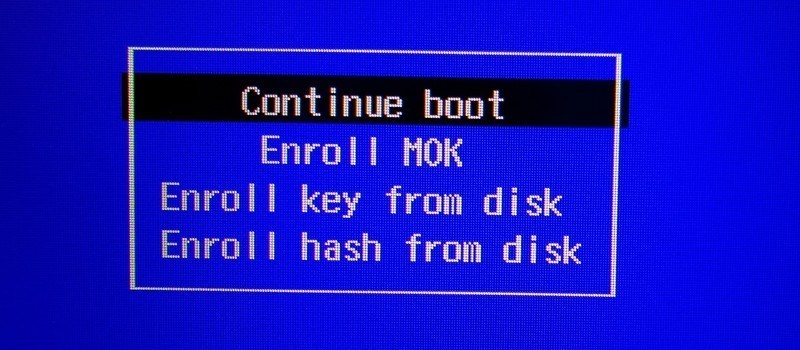
It will ask you to Continue in the next screen followed by asking a password. Use the password you had set while installing the additional drivers (in this case NVIDIA driver). You’ll be asked to reboot now.
enroll MOK -> continue -> enter password -> reboot
Continue the installation
Then, Reboot your computer. To verify the installation, open a terminal and run the following command:
nvidia-smiYou should see this kind of information:
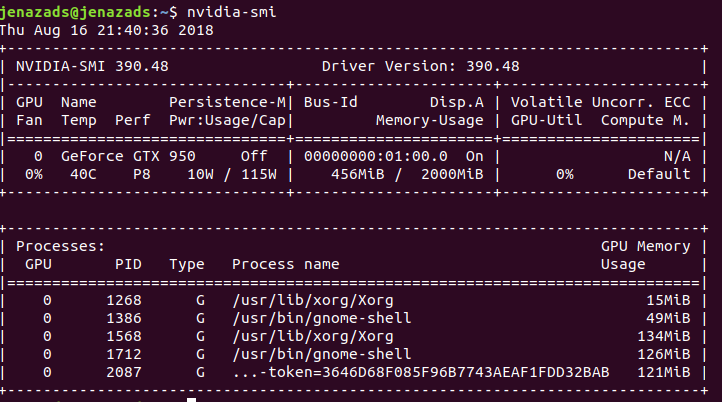
If your nvidia-smi failed to communicate but you’ve installed the driver so many times, check prime-select:
- Run
prime-select queryto get all possible options. You should see at leastnvidia | intel. - Choose
prime-select nvidia. - If it says
nvidia is already selected, select a different one, e.g.prime-select intel, then switch back to nvidiaprime-select nvidia. - Reboot and check
nvidia-smi.
- Run
How to install CUDA 10
Once installed nvidia-drivers, we need to install cuda library, first download file installer (check here):
wget https://developer.download.nvidia.com/compute/cuda/repos/ubuntu1804/x86_64/cuda-ubuntu1804.pin
sudo mv cuda-ubuntu1804.pin /etc/apt/preferences.d/cuda-repository-pin-600
wget http://developer.download.nvidia.com/compute/cuda/10.1/Prod/local_installers/cuda-repo-ubuntu1804-10-1-local-10.1.243-418.87.00_1.0-1_amd64.deb
sudo dpkg -i cuda-repo-ubuntu1804-10-1-local-10.1.243-418.87.00_1.0-1_amd64.deb
sudo apt-key add /var/cuda-repo-10-1-local-10.1.243-418.87.00/7fa2af80.pub
sudo apt-get update
sudo apt-get -y install cuda
If you have some error when you are installing cuda-toolkit like image below:

You can fixe up it with the following command:
sudo apt-get -o Dpkg::Options::="--force-overwrite" install --fix-brokenFinally, modify
.bashrcfile, write these lines (if your cuda dir is like cuda-10.0):export PATH=$PATH:/usr/local/cuda-10.0/bin export CUDADIR=/usr/local/cuda-10.0 export LD_LIBRARY_PATH=$LD_LIBRARY_PATH:/usr/local/cuda-10.0/lib64or just:
export PATH=$PATH:/usr/local/cuda/bin
export CUDADIR=/usr/local/cuda
export LD_LIBRARY_PATH=$LD_LIBRARY_PATH:/usr/local/cuda/lib64/
After modify that file, run:
source .bashrcTo verify cuda installation, just run:
nvcc -V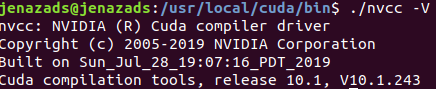
CUDADNN (Deep Learning Toolkits)
To install CUDA NN deep learning for neural networks in CUDA:
- Go to cudnn or here
- Once you log into the system, go to download page, you can select cuDNN dev or lib compatible with your CUDA version
- Select CUDNN 7.0.5 for CUDA 10.0
- Download the cuDNN v7.0.5 Library for Linux (deb file)
Open a terminal in the directory the tar file is located and run (in order):
sudo dpkg -i libcudnn7_7.6.3.30-1+cuda10.1_amd64.deb
sudo dpkg -i libcudnn7-dev_7.6.3.30-1+cuda10.1_amd64.deb
Example
Then, we write the
helloWorldCUDA.cuprogram:#include <stdio.h> const int N = 16; const int blocksize = 16; __global__ void hello(char *a, int *b) { a[threadIdx.x] += b[threadIdx.x]; } int main(){ char a[N] = "Hello \0\0\0\0\0\0"; int b[N] = {15, 10, 6, 0, -11, 1, 0, 0, 0, 0, 0, 0, 0, 0, 0, 0}; char *ad; int *bd; const int csize = N*sizeof(char); const int isize = N*sizeof(int); printf("%s", a); cudaMalloc( (void**)&ad, csize ); cudaMalloc( (void**)&bd, isize ); cudaMemcpy( ad, a, csize, cudaMemcpyHostToDevice ); cudaMemcpy( bd, b, isize, cudaMemcpyHostToDevice ); dim3 dimBlock( blocksize, 1 ); dim3 dimGrid( 1, 1 ); hello<<<dimGrid, dimBlock>>>(ad, bd); cudaMemcpy( a, ad, csize, cudaMemcpyDeviceToHost ); cudaFree( ad ); cudaFree( bd ); printf("%s\n", a); return EXIT_SUCCESS; }Compile and execute with:
nvcc helloWorld.cu -o helloWorld
./helloWorld
Error with compiler gcc/g++ compatibility
Just in you got a compilation error!
First, identify with error do you have (compiler version with
gcc --version), then install it (in this case is gcc-6):sudo apt-get install gcc-6 g++-6And link the gcc cuda compiler with gcc-version (in this case 6):
sudo ln -s /usr/bin/gcc-6 /usr/local/cuda/bin/gcc
sudo ln -s /usr/bin/g++-6 /usr/local/cuda/bin/g++